Tags: Templates, Joomla 1.5 on
Apr 15, 2009
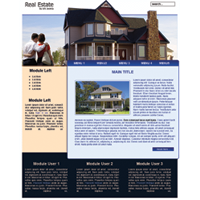 You may have noticed that we've skipped 2 months, but finally there's a new template released. The Free Joomla Template for April is called 'Real Estate'. It's a 2 column template with a very eye catching header. The template is now available for download.
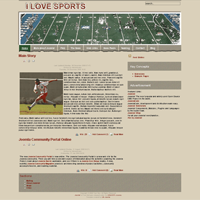 The template of december has just been added to our Free Joomla Templates section. This template is called 'I Love Sports'. It is an excellent template for sites about sports. If you change the logo and banner on top of the template, it can of course be used for any site. The template is now available for download.
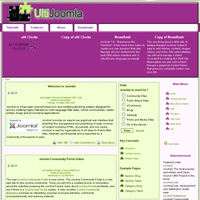 | A new month, means a brand new Joomla Template is released. This template is called "puzzle". and I think you can guess why. It can be downloaded now in our download area. |
Tags: Ulti Joomla, Templates, News on
Nov 1, 2008
 As you can see, Ulti Joomla has a completely new look. A new template, a new logo and some new features. We are still working on some of the new features, so in the coming week, you may expect more new things on Ulti Joomla. If you notice anything weird on the site, let us know with the contact form.
A Joomla template is divided in a number of zones. There is one zone where the active component is shown and a number of zones where your modules are located. If you don't know the difference between components and modules, read the article about the difference between modules, components and plugins. Each zone for modules has a certain position name. E.g. left, right, bottom, user1, user2, etc. In the module parameters you can assign your modules to a certain position. This way you define to which zone your module will belong to.